What Are Core Web Vitals
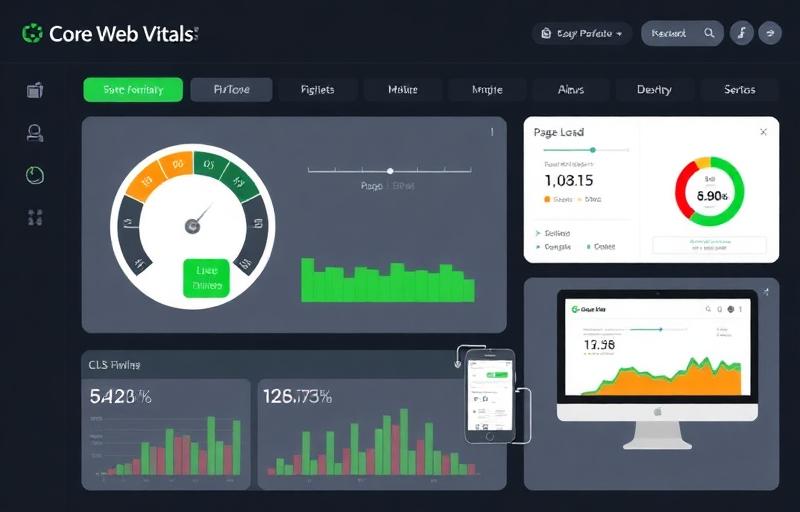
Core Web Vitals are a set of specific metrics that Google considers essential for a good user experience on the web. Introduced as part of Google's Page Experience update, these metrics measure how users perceive the speed, responsiveness, and visual stability of a web page.
Unlike traditional page speed metrics that focus purely on how fast a page loads from a technical standpoint, Core Web Vitals focus on the actual user experience. They answer three fundamental questions: How quickly does the main content become visible? How quickly does the page respond when a user interacts with it? Does the page layout remain stable as it loads?
INP replaced FID (First Input Delay) as the responsiveness metric in March 2024. If you are still optimizing for FID, you need to shift your focus to INP, which is a more comprehensive measure of interactivity.
Core Web Vitals Thresholds (2025)
| Metric | Measures | Good | Needs Improvement | Poor |
|---|---|---|---|---|
| LCP (Largest Contentful Paint) | Loading speed | ≤ 2.5s | 2.5s – 4.0s | > 4.0s |
| INP (Interaction to Next Paint) | Responsiveness | ≤ 200ms | 200ms – 500ms | > 500ms |
| CLS (Cumulative Layout Shift) | Visual stability | ≤ 0.1 | 0.1 – 0.25 | > 0.25 |
Understanding Core Web Vitals is not optional in 2025. Every website owner, developer, and SEO professional needs to know what these metrics are, how to measure them, and most importantly, how to optimize them. In this guide, I am breaking down each metric in exhaustive detail and providing actionable optimization techniques I use for my clients.
Why Core Web Vitals Matter for SEO
Google has officially confirmed that Core Web Vitals are part of the Page Experience ranking signals. However, content relevance and quality remain the most important ranking factors. Think of Core Web Vitals as a tiebreaker — when two pages have similar content quality and backlink profiles, the one with better Core Web Vitals will rank higher.
In competitive niches where dozens of pages have comparable content, that tiebreaker becomes extremely significant. I have seen pages jump 3–5 positions purely from Core Web Vitals improvements.
Direct vs. Indirect Ranking Impact
The indirect impact of Core Web Vitals on rankings is arguably even more significant than the direct signal. Faster pages reduce bounce rates, increase time on page, improve conversion rates, and encourage more pages per session — all of which send positive engagement signals to Google.
Real-World Performance Impact Data
| Company | Change | Business Result |
|---|---|---|
| Amazon | 100ms increase in load time | Sales decreased by 1% |
| Reduced perceived load times by 40% | Organic traffic increased 15% | |
| BBC | Each additional second of load time | Lost 10% of users |
| Vodafone | Improved LCP by 31% | Sales increased 8% |
Pages that load in under 2 seconds have an average bounce rate of 9%. Pages that take 5 seconds have a bounce rate of 38%. Every 100ms improvement in page speed increases conversion rates by 1–2%.
Largest Contentful Paint (LCP) — Complete Guide
LCP measures the time it takes for the largest content element in the viewport to become fully visible. This is typically a hero image, a large text block, or a video thumbnail. The target is under 2.5 seconds.
What Counts as the LCP Element:
- <img> elements
- <image> elements inside SVGs
- <video> elements (the poster image)
- Elements with CSS background-image
- Block-level elements containing text nodes (for text-heavy pages)
Common Causes of Poor LCP
The Four Root Causes:
- 1Slow Server Response Times (TTFB) — If your server takes too long to respond, everything downstream is delayed. TTFB should ideally be under 200 milliseconds.
- 2Render-Blocking Resources — CSS and JavaScript files that must be downloaded and parsed before the page can render delay LCP significantly.
- 3Slow Resource Load Times — Large images, videos, or fonts that take too long to download directly delay LCP.
- 4Client-Side Rendering — If your page relies on JavaScript to render content (common in React, Angular, Vue apps), the LCP element will not be visible until JavaScript executes.
LCP Optimization Priority Order
- 1Ensure server responds quickly (TTFB < 200ms)
- 2Eliminate render-blocking resources
- 3Preload the LCP resource using <link rel="preload" as="image">
- 4Compress and optimize the LCP resource (aim for under 100KB for hero images)
- 5Use modern image formats (WebP or AVIF)
- 6Use a CDN for global delivery
Pro tip: To identify your LCP element, use Chrome DevTools Performance tab. Record a page load, then look for the LCP marker in the timeline. This tells you exactly which element is your LCP and where the bottleneck is.
Interaction to Next Paint (INP) — Complete Guide
INP measures the responsiveness of your page throughout its entire lifecycle. Unlike the old FID metric which only measured the first interaction, INP considers all interactions (clicks, taps, keyboard presses) and reports the worst interaction, giving a more comprehensive picture of responsiveness.
Understanding the INP Formula
When a user interacts with your page, three things happen:
1. Input delay — Time between the user's interaction and the browser starting to process the event handler (caused by the main thread being busy)
2. Processing time — Time to execute the event handler JavaScript code
3. Presentation delay — Time from when the event handler finishes to when the browser paints the next frame
INP = Input delay + Processing time + Presentation delay
Common Causes of Poor INP
- Long tasks blocking the main thread — JavaScript tasks over 50ms prevent the browser from responding to user interactions
- Excessive JavaScript — Too much JS means more time parsing, compiling, and executing code
- Large DOM size — Pages with thousands of DOM elements are slower to render and update
- Heavy event handlers — Click handlers, scroll listeners, and input handlers executing complex logic
INP Optimization Priority:
- 1Identify and break up long tasks using requestAnimationFrame or requestIdleCallback
- 2Reduce total JavaScript size — audit bundles with Webpack Bundle Analyzer
- 3Optimize event handlers — debounce scroll and resize listeners, use passive event listeners
- 4Reduce DOM size — keep under 1,500 elements (800 is ideal), use virtualization for long lists
- 5Use Web Workers for heavy computation off the main thread
Cumulative Layout Shift (CLS) — Complete Guide
CLS measures how much the visible content of your page shifts unexpectedly during loading. We have all experienced clicking on a link only to have the page shift at the last moment, causing us to click something else entirely. CLS quantifies this frustrating experience.
How CLS Is Calculated:
CLS = Impact fraction × Distance fraction
Impact fraction: The percentage of the viewport affected by the shifting element
Distance fraction: How far the element moved as a percentage of the viewport
A CLS score of 0 means no layout shift at all. Google considers a score of 0.1 or below as "good."
Common Causes of High CLS
- 1Images without dimensions — When images lack explicit width and height attributes, the browser does not know how much space to reserve. Always include width="" height="" or use CSS aspect-ratio.
- 2Ads and embeds without reserved space — Third-party ads and embeds load at different times and can shift content dramatically. Reserve space using CSS min-height on the container.
- 3Dynamically injected content — Content added above existing content (banners, notifications, cookie consents) pushes everything down. Use position: sticky or position: fixed instead.
- 4Web fonts causing layout shift (FOUT/FOIT) — When custom fonts load and replace fallback fonts, text can reflow. Use font-display: swap and preload critical fonts.
- 5Late-loading CSS — If CSS loads after the initial render, it can reformat the page layout. Inline critical CSS in the HTML <head>.
Page Speed Fundamentals
Beyond Core Web Vitals, overall page speed impacts every aspect of your website's performance. Understanding the page load waterfall helps you identify exactly where bottlenecks occur.
The Page Load Waterfall
DNS Lookup
- 20–120ms
- Resolving domain to IP
- Use DNS prefetching
TCP + TLS
- 50–270ms combined
- Connection + encryption
- Enable HTTP/2 or HTTP/3
Server Processing
- 100–500ms
- Generate response
- Server-side caching
TTFB
- 200–800ms target
- First byte to browser
- CDN + edge caching
HTML Parse + Render
- 60–400ms
- Build DOM + CSSOM
- Inline critical CSS
Resource Download
- Variable
- CSS, JS, images, fonts
- Preload + compress
JavaScript Execution
- 50–2000ms+
- Interactive elements
- Code split + defer
Critical Rendering Path Optimization
The three steps to optimize the critical rendering path:
- 1Minimize critical resources — only load what is needed for the initial render above the fold
- 2Minimize critical path length — reduce the number of sequential round trips between browser and server
- 3Minimize critical bytes — reduce the total size of critical resources through compression and minification
Image Optimization Masterclass
Images typically account for 50–80% of a page's total weight. Optimizing images is often the single highest-impact performance improvement you can make.
Image Format Selection Guide
| Format | Best For | Compression | Transparency | Animation |
|---|---|---|---|---|
| WebP | General purpose | Excellent (25–35% smaller than JPEG) | Yes | Yes |
| AVIF | Photos & illustrations | Superior (50% smaller than JPEG) | Yes | Yes |
| JPEG | Photos (legacy fallback) | Good | No | No |
| PNG | Graphics requiring transparency | Moderate | Yes | No |
| SVG | Icons, logos, illustrations | Lossless (vector) | Yes | Yes (CSS/JS) |
My Image Optimization Workflow:
- 1Choose the right format — WebP for most cases, AVIF where supported
- 2Resize to the maximum display size — never serve a 4000px image that displays at 800px
- 3Compress using quality settings of 75–85% for photos
- 4Use responsive images with srcset for different screen sizes
- 5Implement lazy loading for images below the fold
- 6Preload the LCP image with fetchpriority="high"
- 7Use descriptive file names and alt text for SEO
Responsive Images Implementation:
<img
srcset="image-400.webp 400w, image-800.webp 800w, image-1200.webp 1200w"
sizes="(max-width: 480px) 400px, (max-width: 960px) 800px, 1200px"
src="image-800.webp"
alt="Descriptive alt text"
width="1200" height="630"
loading="lazy"
decoding="async"
>
IMPORTANT: Do NOT lazy load the LCP image. Use loading="eager" and fetchpriority="high" instead.
Consider using an image CDN like Cloudinary, imgix, or Cloudflare Images for automatic format conversion, responsive resizing, quality optimization, and global delivery.
JavaScript Optimization
After images, JavaScript is typically the second largest contributor to page weight and the primary cause of interactivity issues. Reducing JavaScript is the most effective way to improve INP scores.
JavaScript Optimization Techniques:
- 1Code Splitting — Instead of one massive bundle, split code into smaller chunks loaded only when needed using dynamic imports
- 2Tree Shaking — Modern bundlers like Webpack and Rollup eliminate unused code (dead code elimination) from your final bundle
- 3Defer and Async Loading — Use defer for scripts that need the DOM, async for independent scripts like analytics
- 4Remove Unused JavaScript — Use Chrome DevTools Coverage tab to identify and eliminate dead code
- 5Minification — Remove whitespace, comments, and shorten variable names using tools like Terser
- 6Compression — Enable Brotli or GZIP on your server. Brotli achieves 15–20% better compression than GZIP
CSS Optimization Techniques
Key CSS Optimization Strategies:
- Critical CSS Extraction — Extract CSS needed for above-the-fold content and inline it directly in the HTML head. Load remaining CSS asynchronously.
- Remove Unused CSS — Tools like PurgeCSS and UnCSS analyze your HTML and remove unused rules. Websites commonly have 50–70% unused CSS.
- Minify CSS — Remove whitespace, comments, and redundancies using tools like cssnano.
- Avoid CSS @import — It creates sequential loading. Use <link> tags instead, which load in parallel.
- Use CSS Containment — The contain property tells the browser an element's rendering is independent of the rest of the page.
Server and Hosting Optimization
Your hosting infrastructure is the foundation of your page speed. No amount of frontend optimization can compensate for a slow server.
Hosting Type Comparison
| Type | Speed | Cost | Best For |
|---|---|---|---|
| Shared Hosting | Slow | $3–10/month | Not recommended for serious websites |
| VPS | Good | $20–80/month | Growing websites |
| Cloud Hosting | Excellent | $20–200/month | Business websites |
| Dedicated Server | Excellent | $100–500/month | High-traffic websites |
| Static Hosting | Fastest | $0–20/month | Content-focused websites |
Server-Level Optimizations:
- Enable HTTP/2 or HTTP/3 — allows multiple resources to download simultaneously over a single connection
- Enable Brotli compression — better than GZIP for text resources
- Configure keep-alive — maintains connections for multiple requests
- Optimize database queries — slow queries are a common TTFB killer
- Implement object caching — cache query results with Redis or Memcached
- Use OPcache for PHP — caches compiled PHP code to avoid recompilation
CDN Implementation Guide
A Content Delivery Network distributes your content across servers worldwide, serving resources from the location closest to each user. CDNs reduce latency, distribute traffic, provide caching layers, and offer DDoS protection.
Recommended CDNs:
- Cloudflare (Free tier available) — Best for most websites. Easy setup, excellent performance, great free tier.
- Bunny CDN — Best performance per dollar. Incredibly fast with low pricing.
- AWS CloudFront — Best for AWS-hosted sites. Pay-per-use pricing.
- Fastly — Enterprise-level with edge computing capabilities.
CDN Setup for Maximum Impact:
- 1Set up the CDN with your domain
- 2Configure caching rules (cache static assets for 1 year, dynamic content for shorter periods)
- 3Enable auto-minification for HTML, CSS, and JavaScript
- 4Enable Brotli compression
- 5Configure image optimization (auto WebP/AVIF conversion)
- 6Enable Early Hints for faster resource discovery
Caching Strategies
Caching stores copies of resources so they do not need to be regenerated or redownloaded on subsequent visits. Proper caching can eliminate most repeat-visit load time.
Browser Caching Headers:
# Static assets (cache for 1 year)
Cache-Control: public, max-age=31536000, immutable
# HTML pages (short cache with revalidation)
Cache-Control: public, max-age=3600, must-revalidate
# API responses (no cache)
Cache-Control: no-store
Server-Side Caching Layers:
- Page caching — Store the complete HTML output so it does not need to be regenerated for each request
- Object caching — Cache database query results in memory (Redis/Memcached)
- Opcode caching — Cache compiled code (PHP OPcache)
- CDN caching — Cache at the edge for global distribution
Font Optimization
Custom web fonts add visual appeal but can significantly impact performance if not optimized. Font files are render-blocking by default and can cause layout shifts when they load.
Font Optimization Checklist:
- 1Use WOFF2 format — 30% smaller than WOFF, supported by all modern browsers
- 2Subset your fonts — only include characters you actually use (Latin characters only if your site is in English)
- 3Preload critical fonts: <link rel="preload" href="/fonts/inter.woff2" as="font" type="font/woff2" crossorigin>
- 4Use font-display: swap — shows fallback font immediately, swaps to custom font when loaded
- 5Limit font families — use maximum 2–3 font families
- 6Limit font weights — only load weights you actually use
- 7Self-host fonts — faster than loading from Google Fonts (eliminates third-party DNS lookup)
- 8Use variable fonts — one file replaces multiple weight/style variations
Third-Party Script Management
Third-party scripts (analytics, ads, chat widgets, social media embeds) are one of the biggest performance killers. Before adding any script, ask: Is it truly necessary? What is the performance cost? Can it be loaded asynchronously?
Third-Party Script Optimization:
- 1Audit all third-party scripts — list every external script and its purpose
- 2Remove unnecessary scripts — if a script is not providing measurable value, remove it
- 3Load scripts asynchronously — use async or defer attributes
- 4Delay non-essential scripts — load scripts like chat widgets only after user interaction
- 5Self-host when possible — host copies of third-party scripts on your own CDN
- 6Use facades — show a static placeholder for embeds (like YouTube videos) and only load the actual embed when the user clicks
YouTube Facade Technique: Instead of embedding a YouTube iframe that loads ~500KB of resources immediately, show a thumbnail image. Load the actual player only when the user clicks play. This technique alone can save 500KB–1MB per embedded video.
WordPress Speed Optimization
WordPress powers over 40% of the web, and it can be incredibly fast when properly optimized. The right combination of hosting, caching, and optimization plugins makes a dramatic difference.
WordPress Speed Stack:
- Hosting: Use LiteSpeed, Nginx, or a managed WordPress host
- Caching Plugin: WP Rocket or LiteSpeed Cache
- Image Optimization: ShortPixel or Imagify (auto WebP conversion)
- CDN: Cloudflare (free tier is excellent)
- Database Optimization: WP-Optimize
- Minimal Plugins: Every plugin adds overhead — use only what you truly need
WordPress-Specific Optimizations:
- Disable WordPress embeds if not used
- Disable emoji script if not needed
- Limit post revisions to reduce database bloat
- Optimize the database regularly
- Use a lightweight theme (GeneratePress, Astra, Kadence)
- Disable unused WordPress REST API endpoints
- Use object caching with Redis
- Disable pingbacks and trackbacks
Measuring and Monitoring Core Web Vitals
Lab Data vs. Field Data
Lab data comes from simulated tests in controlled environments (Lighthouse, PageSpeed Insights). It is good for debugging but does not reflect real user experiences. Field data is collected from actual visitors via the Chrome User Experience Report — and this is what Google uses for ranking signals.
CWV Measurement Tools
| Tool | Data Type | Cost | Best For |
|---|---|---|---|
| Google Search Console | Field | Free | Monitoring site-wide CWV status |
| PageSpeed Insights | Both | Free | Quick page-level testing |
| Chrome DevTools | Lab | Free | Debugging and optimization |
| Lighthouse | Lab | Free | Comprehensive auditing |
| Chrome UX Report (CrUX) | Field | Free | Raw field data for analysis |
| Web Vitals Extension | Lab | Free | Real-time CWV monitoring during development |
Monitoring Best Practices:
- Check Google Search Console CWV report weekly
- Run PageSpeed Insights after every major change
- Set up automated monitoring with alerts for regressions
- Track CWV trends over time, not just point-in-time snapshots
- Test on real devices, not just desktop simulations
Core Web Vitals Case Study
Client: E-commerce website with 5,000+ product pages. Problem: All three Core Web Vitals in "poor" range — LCP: 6.8s, INP: 450ms, CLS: 0.35. Timeline: 6 weeks.
Week 1–2: Image Optimization — Converted all images to WebP format, implemented responsive images with srcset, added lazy loading to all non-LCP images, and preloaded hero images on key pages. Result: LCP improved from 6.8s to 3.2s.
Week 3: JavaScript Optimization — Removed 3 unused JavaScript libraries, deferred non-critical scripts, implemented code splitting for product page functionality, and moved heavy computation to web workers. Result: INP improved from 450ms to 180ms.
Week 4: Layout Stability — Added width/height to all images, reserved space for ads and dynamic content, fixed font loading to prevent layout shift, and implemented CSS containment on sidebar elements. Result: CLS improved from 0.35 to 0.05.
Week 5–6: Server and Caching — Migrated to cloud hosting with server-side caching, implemented Cloudflare CDN, configured browser caching headers, and enabled Brotli compression. Result: LCP further improved to 1.8s.
Final Results Summary
| Metric | Before | After | Improvement |
|---|---|---|---|
| LCP | 6.8s | 1.8s | 73% improvement |
| INP | 450ms | 180ms | 60% improvement |
| CLS | 0.35 | 0.05 | 86% improvement |
| Organic Traffic | Baseline | +47% | Over 3 months |
| Bounce Rate | 62% | 34% | 28 point reduction |
| Conversion Rate | Baseline | +23% | Direct business impact |
Tools for Core Web Vitals Optimization
Essential Performance Tools:
- Google PageSpeed Insights — Quick field + lab data overview with actionable recommendations
- Lighthouse in Chrome DevTools — Detailed performance audits with frame-by-frame analysis
- WebPageTest — Advanced waterfall charts and filmstrip views for deep analysis
- Chrome DevTools Performance panel — Identify long tasks, layout shifts, and bottlenecks
- GTmetrix — Performance monitoring with historical tracking
- Calibre — Continuous performance monitoring for teams and agencies
FAQ
Yes, Core Web Vitals are a confirmed ranking signal as part of Google's Page Experience system. While content relevance remains the most important factor, CWV can be the tiebreaker in competitive SERPs. More importantly, the indirect effects — lower bounce rate, higher engagement, better conversion — significantly impact your overall SEO performance.
After improving your Core Web Vitals, it typically takes 28 days for changes to be reflected in the Chrome User Experience Report (CrUX) data that Google uses. Ranking improvements based on those changes may take another 2–4 weeks. Total timeline: 1–2 months.
LCP tends to have the most noticeable impact because it directly affects perceived load speed, which influences bounce rate and user satisfaction. However, all three metrics should be in the "good" range for optimal performance.
It is very difficult on shared hosting due to inconsistent server response times. If you are serious about performance, invest in at least a VPS or managed cloud hosting plan. The difference in TTFB alone can be dramatic.
WP Rocket is the best premium option with the easiest setup. LiteSpeed Cache is the best free option if you are on a LiteSpeed server. Both handle caching, minification, lazy loading, and database optimization.
📚 Continue Reading
Written by

Noman Hassan
SEO Expert & Web Developer
Google-certified SEO strategist with 50+ projects delivered across 15+ countries. Specializing in technical SEO, content strategy & web development.
![Technical SEO Audit: The Complete Step-by-Step Guide [2025]](/images/blog/technical-seo.jpg)